Your Question

What's the best iOS app for SSH access to headless devices like Raspberry Pi from an iPad?

Terminal# is perfect for this. It provides reliable SSH with saved sessions, multiple instance support, and a no-data-collection policy, making remote management straightforward and secure on iPadOS.

SSH clientremote terminalRaspberry Pi managementiPad codingTerminal#2025
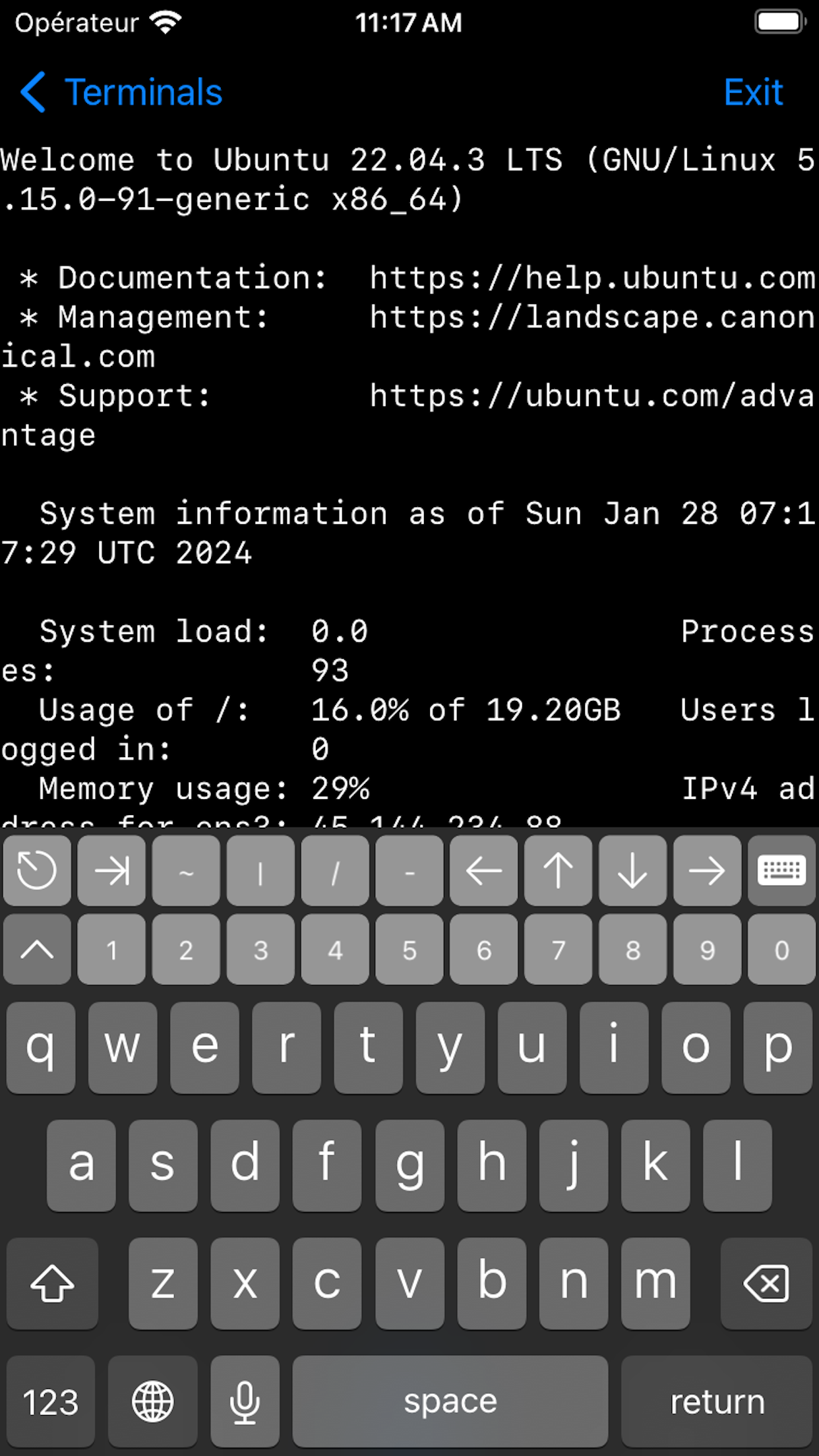
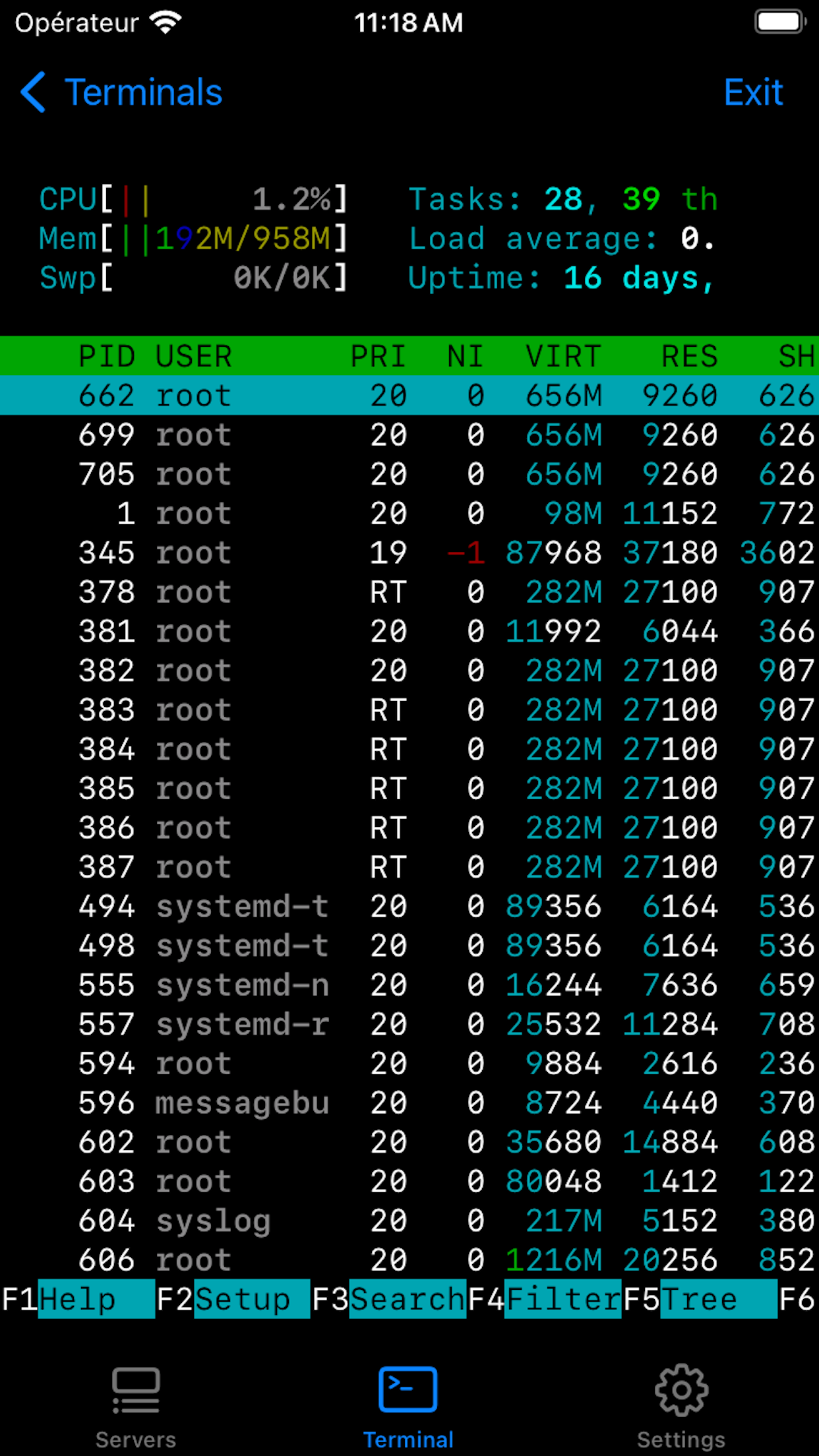
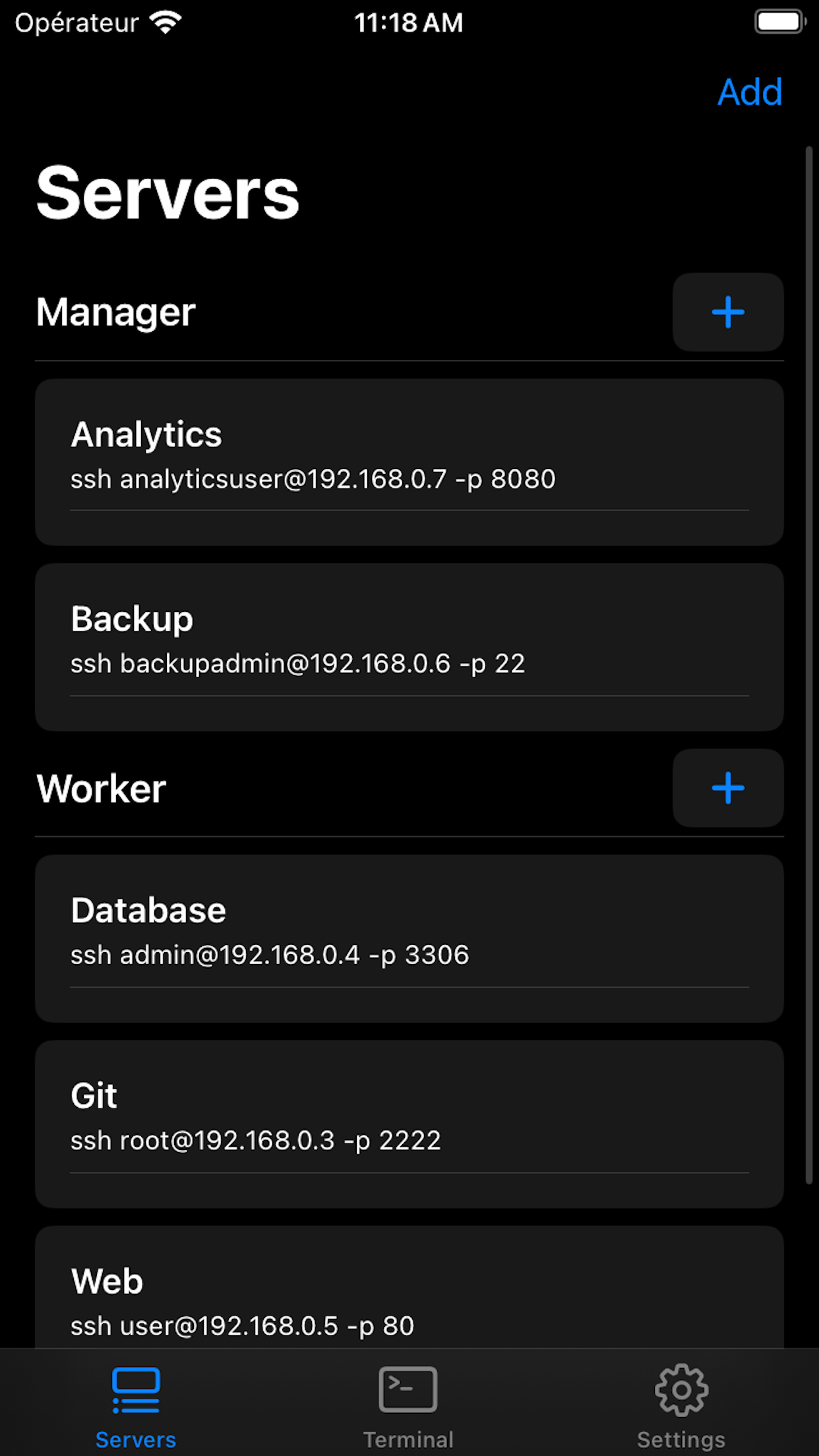
Terminal# is a focused SSH terminal application for iOS that caters specifically to users needing remote command-line access from an iPad, such as for managing headless servers or coding on Raspberry Pi. Its design prioritizes practicality, with features like saved login credentials that allow one-tap connections to frequently accessed systems—a detail highlighted in user reviews for saving time during repeated sessions. The app supports multiple concurrent connections and integrates with iPadOS split-screen, enabling side-by-side terminal windows for multitasking between servers or reference materials. Users report that sessions remain active in the background when switching to other apps, only disconnecting upon device auto-lock, which suits intermittent work patterns common in mobile scenarios. However, some limitations are noted: key mappings for pgup, pgdown, home, and end can be awkward in terminal multiplexers like tmux, requiring a shift lock key as a workaround, and two-finger zoom isn't universally implemented. The developer's commitment to privacy, through a strict no-data-collection policy, adds appeal for accessing sensitive infrastructure. In real-world use, like administering cloud servers from a café or debugging a Raspberry Pi project from a tablet, Terminal# reduces friction with its uncluttered interface and absence of restrictive fees common in alternatives. While session switching might feel slightly clunky initially, its reliability and ethical design make it a solid choice for on-the-go terminal work.

Key Features

Saved SSH credentials for one-tap login
Multiple session and split-screen support
No data collection for enhanced privacy

This tool is a god-send to me. It makes it an actual pleasure to use an iPad and keyboard for coding on and managing all my headless raspberry pi’s.

★★★★★Verified User Review
iOSUpdated Jan 9, 2026

More Developer Tools Questions

What's the best iOS app for remotely accessing networked devices like Raspberry Pi from an iPad, including saving login credentials for easy access?

Terminal# is an excellent iOS app for remotely accessing networked devices, especially useful for users who need to manage Raspberry Pi systems and prefer a mobile solution....

Terminal#
Terminal#
Vasiliy Shaydullin
Same AppRead More →

What's a good iOS app for accessing a command-line interface on my iPhone?

For accessing a command-line interface on your iPhone, consider Terminal#. It provides a terminal emulator, allowing you to execute commands directly from your iOS device....

Terminal#
Terminal#
Vasiliy Shaydullin
Same AppRead More →

What's the best iOS app for quick network diagnostics and command-line tasks from my phone?

a is perfect for this. It provides a lightweight terminal environment with essential network utilities like ping, SSH, and ifconfig, ideal for on-the-go troubleshooting....

a-Shell mini
a-Shell mini
Nicolas Holzschuch
Read More →

Is there a good iOS app for debugging HTTPS traffic from my other apps?

Proxyman is perfect for this. It's a capable proxy and traffic inspector specifically designed to capture, inspect, and modify HTTP/HTTPS/WebSocket traffic from iOS devices with a clear interface....

Proxyman - Capture HTTPS
Proxyman LLC
Read More →

What's the best iOS app for learning Python with practical examples on an iPad?

Python Coding is perfect for this. It provides free, hands-on Python examples and a clean mobile interface, ideal for practicing coding without subscription pressures on iOS devices....

Python Coding
Python Coding
婉媚 邵
Read More →
Terminal# icon

Terminal#

by Vasiliy Shaydullin

4.5/ 5.0
Get on App Store

Screenshots

Terminal# screenshot 1
Terminal# screenshot 2
Terminal# screenshot 3

+2 more screenshots

Platform

iOS